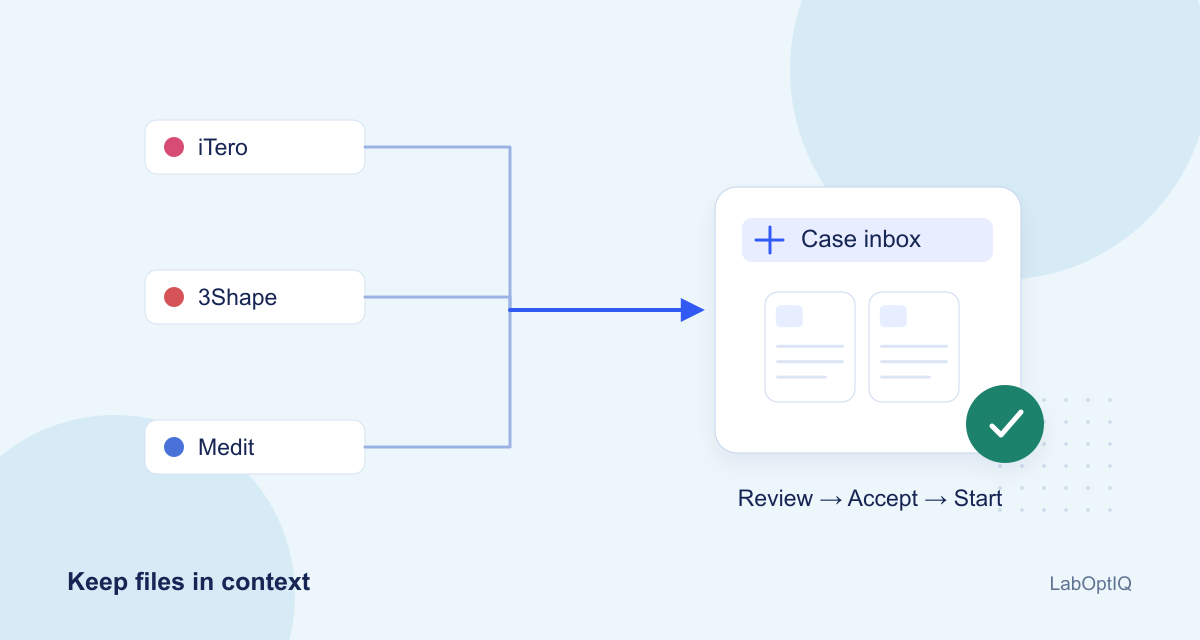
Agree an intake record across sources
Keep a stable lab case reference alongside each portal's source reference. Associate the clinic, received date, requested work, and review owner with the file package. A folder named only after a patient or clinic is not a dependable substitute for a controlled case record.
Do not assume that all sources provide the same metadata or file types. iTero integration documentation describes export settings and downloadable artifacts; 3Shape and Medit document their own case and export workflows. Confirm the actual route available to your lab's account instead of extrapolating from another clinic's setup.
Preserve the original package
Keep the original received files identifiable and record where they came from. If the team prepares working copies for design, distinguish those from the source files. This makes it easier to resolve questions about what the lab originally received and what changed during subsequent handling.
Use descriptive file roles where possible, such as upper, lower, prescription, or reference image, without assuming that a filename proves its contents. Qualified staff should inspect the package under the lab's intake procedures. Opening a file successfully is not the same as confirming its suitability for a specific restoration.
Make revisions explicit
When a clinic sends a replacement scan or updated instruction, record a new version with its source and receipt time. Link the reason for the change and the person who reviewed it. Mark which package should be used for the next stage without deleting the earlier context.
A duplicate portal event should not automatically become another accepted lab case. Evaluate how your process matches source references, distinguishes an update from a new order, and handles a download that is retried after an interruption. Ask to see those behaviors in a software demonstration.
Use formats according to the downstream need
STL, PLY, OBJ, and vendor-specific formats can carry different information. Do not convert everything to a single format just to simplify filing without checking what the receiving design process requires. Keep supporting prescriptions and attachments connected to the same reference.
The export settings and permissions available to a lab can affect what arrives. Test a representative package from each major source with the actual software used by your team. If a conversion is necessary, document the working copy and retain the original received package according to your procedures.
Control access and recovery
Give staff access appropriate to their role and keep clinic-facing access separate from unrelated lab cases. Decide who can replace, download, remove, or approve files. Review what happens when an employee leaves and how access to shared folders or portal accounts is withdrawn.
Ask how case records and attachments are exported and restored together. An export of a case list without its files may be insufficient for a migration or recovery. Keep responsibility for backups and retention explicit, with advice suited to your contracts and applicable requirements.
Evaluate a unified inbox with exceptions
A consolidated view is useful when it retains source context and supports review before acceptance. Test missing files, a failed transfer, a revised scan, and a duplicate source reference. Confirm how staff identify and resolve each exception.
LabOptIQ's unified-intake proposition is relevant to this discussion, but the specific scanner accounts, metadata, permissions, and downstream handoffs need confirmation. Bring your actual portal list and a representative case package to the evaluation. A visible source badge is the beginning of the test, not the evidence that every handoff works.
View A Workflow Example
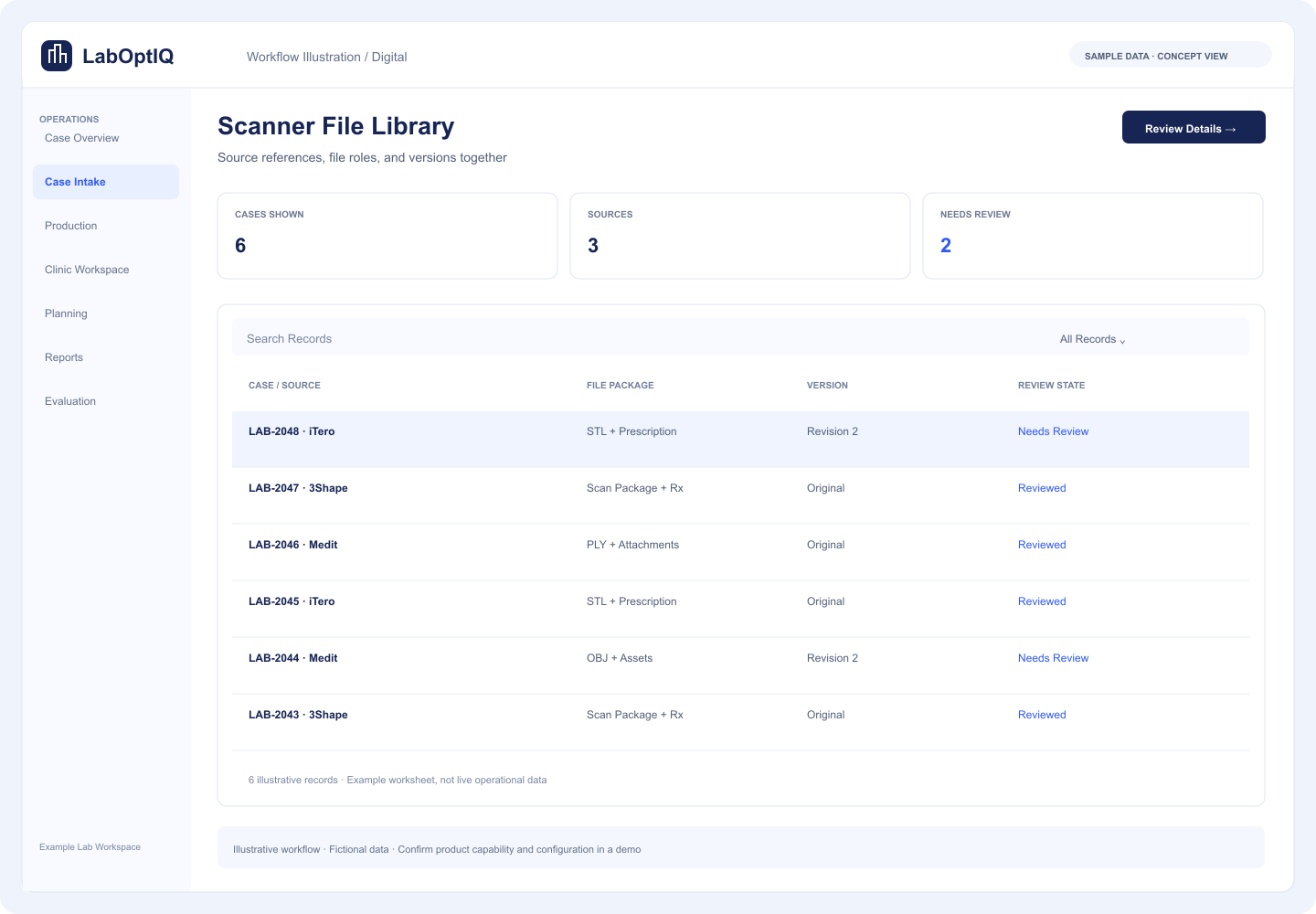
Explore this workflow with your team.
Bring your cases, scanner sources, and existing tools to a LabOptIQ demo. Confirm the handoffs, available features, and integration scope that matter to your lab.
Book A Workflow DemoSources & Further Reading
- iTero: LMS integration specification and export settings
- 3Shape: Case updates between clinics and labs
- Medit: File Viewer and supported data
Vendor documentation explains its own platform, not a confirmed LabOptIQ integration or partnership.