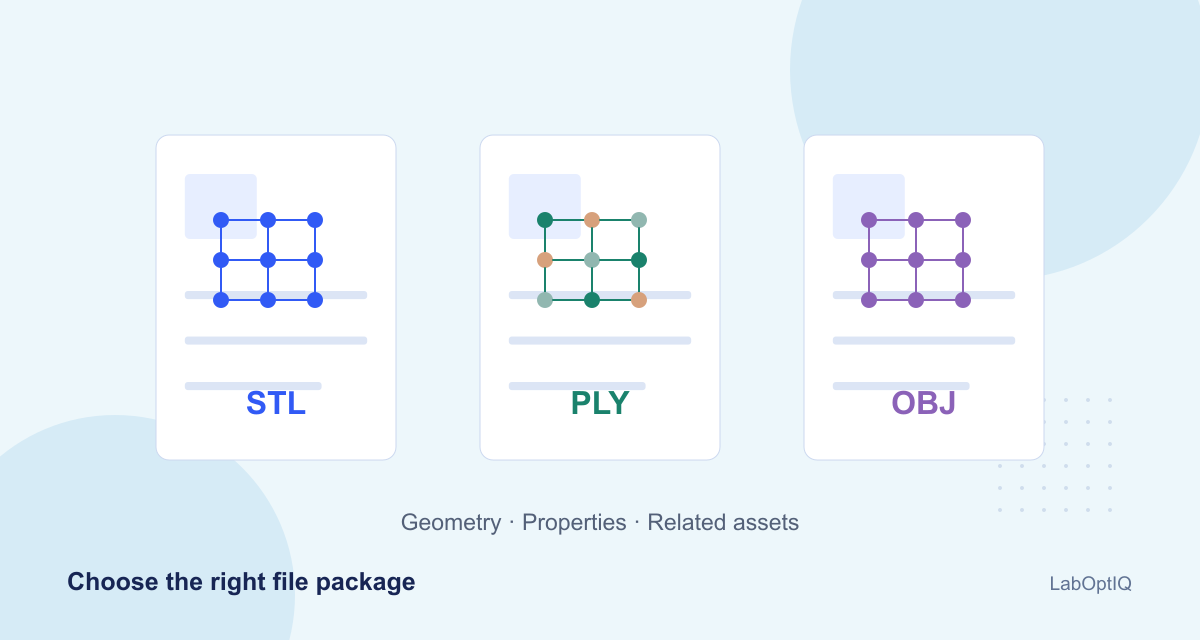
STL: widely used surface geometry
STL describes a surface using triangles. Its documented standard representation does not include color or texture, although nonstandard variations exist. It is often used in manufacturing handoffs where the receiving process needs geometry rather than appearance information.
An STL file does not constitute a complete dental prescription. Keep case identity, requested work, units or scale expectations, and supporting records connected to the model. Confirm the receiving software's interpretation instead of assuming that a successful import means the entire handoff is correct.
PLY: properties depend on the exported file
PLY can store a polygonal model with additional properties, including color in supported workflows. What is present depends on the file, exporter, and receiving application. The extension alone is not evidence that every desired property was included or will survive another conversion.
When appearance information matters, test a representative export with the actual software used downstream. Have qualified staff confirm the result against the source. Keep the original package identifiable so a question about a conversion does not require obtaining the scan again from the clinic.
OBJ: keep associated assets together
OBJ is a geometry format commonly used with additional material and texture information in associated files. Depending on the export, an OBJ package may need an MTL file and image assets for its intended appearance. Moving only the OBJ can therefore produce an incomplete working package.
Agree how the package is stored and transferred. Preserve relationships between associated files and avoid renaming individual assets without testing the result. A controlled archive or folder structure can be more reliable than sending a selection of attachments from memory.
Test the receiving workflow, not a format label
Ask which formats your CAD or manufacturing process accepts for each task. Different software versions and export settings may behave differently. Medit, for example, documents file viewing and export workflows that support several mesh formats; the right choice still depends on what the next process needs.
Use a controlled test case and record the exporter, settings, resulting files, and receiving application. A format conversion can change what information is available. Do not repeatedly convert a working copy without retaining the original or checking whether information needed later has been removed.
Manage versions and supporting records
Store files with the case reference, source, received date, and a clear role or description. Separate original scans, revised scans, working design files, and approved production outputs. A filename such as final-new-2 is not a dependable approval mechanism.
Keep prescriptions, reference images, and communications connected to the same case. The file library should explain which package is current and why. Record the person who reviewed an important replacement before it is released to a stage already in progress.
Create a practical transfer checklist
Confirm the case reference, expected geometry, any required appearance assets, supporting prescription, intended software, and transfer completeness. Include an action for missing or unreadable files. Avoid assuming that every source supplies every file type or that changing a file extension converts its contents.
Use the Library of Congress format descriptions and your software vendors' documentation for format context, then validate the specific dental workflow with qualified staff. File compatibility is an operational requirement to test, not a promise that every restoration can move between every system without review.
View A Workflow Example
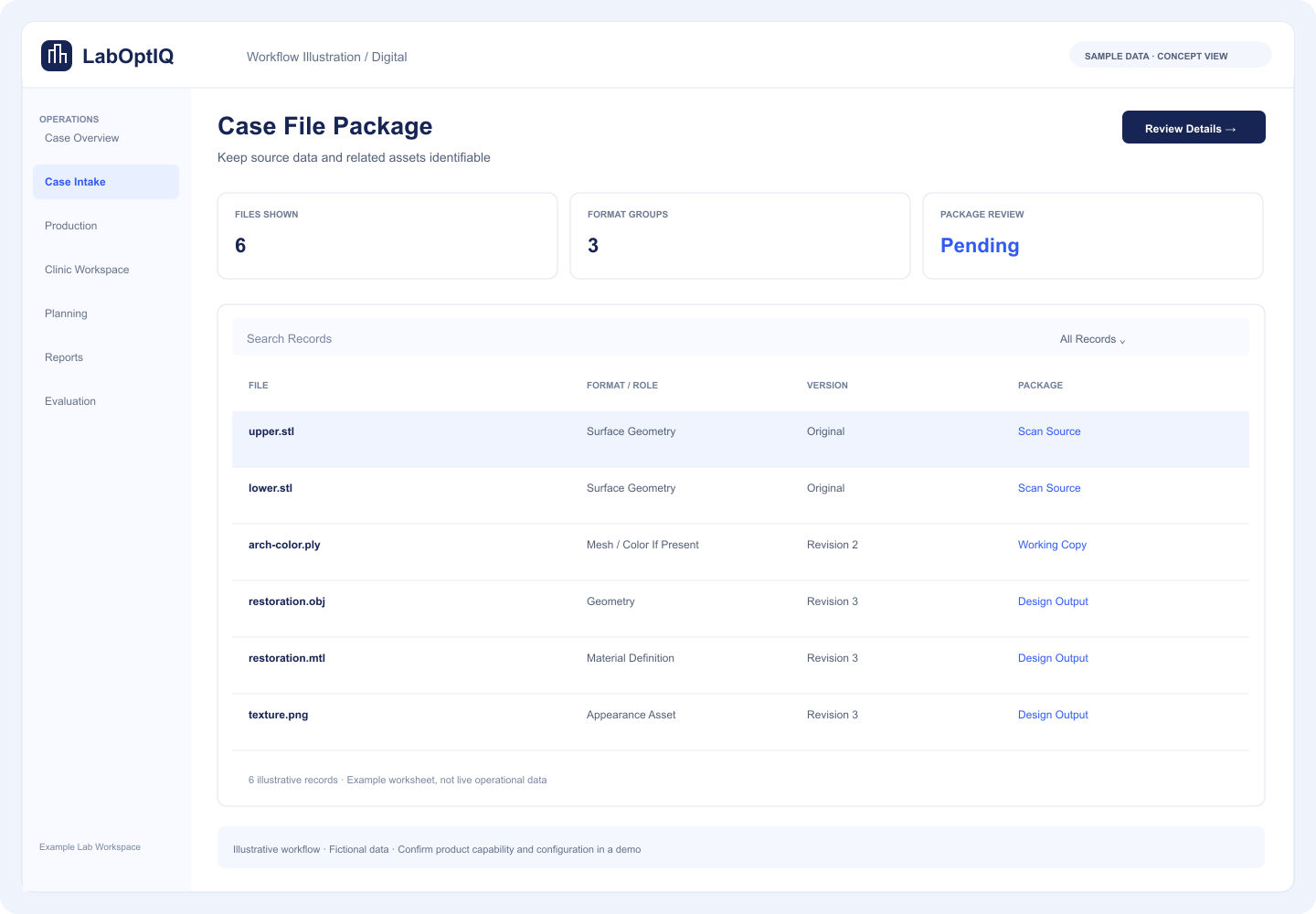
Explore this workflow with your team.
Bring your cases, scanner sources, and existing tools to a LabOptIQ demo. Confirm the handoffs, available features, and integration scope that matter to your lab.
Book A Workflow DemoSources & Further Reading
- Library of Congress: STL format characteristics
- Library of Congress: Design and 3D format descriptions
- Medit: File Viewer and supported data
Vendor documentation explains its own platform, not a confirmed LabOptIQ integration or partnership.